This doth be a machine-wrought text which may contain errors!
Whence doth this information spring?
Much hereof is but a recounting of Godot’s official documentation. Underneath ye shall find some helpful links to the said documentation (which I do most heartily commend above this upon Piggy, yet if thou dost prefer this, use it freely!)
Useful Resources:
What sayest thou concerning graphics? Must I forge it myself?
Nay! Ye may find much gratis adornment here:
Other helpful links:
What other gaming contrivances be there?
If thou dost prefer it, thou mayst employ other game engines. Examples thereof include:
There abound many more; search diligently if thou wishest to try thy hand at another!
What is Godot?
Hark, what art thou to know of this matter? Godot (pronounced Guh-doe) is a ‘game engine’. To speak plainly ’tis but an instrument that granteth thee leave to craft thy own pastimes—or common programs if so it pleasest ye—beholden by will alone. By its power mayst thou accomplish all things which other engines doth achieve, whether in two dimensions or threefold space.
Examples of plays wrought within the embrace of Godot: The Godot Showcase
’Tis not solely humble indie creations born from these looms; nay, even Sonic Colours Ultimate hath been fashioned with aid of the mighty Godot! ⚡⚡⚡
How shalt thou procure Godot?
Thou mayest either download Godot from:
- The official page: Godot Official Page.
- Or upon Steam: Godot Steam.
Only download and install it, or runeth it on Steam.
Hark ye a project set up!
When thou dost commence thy journey with Godot, this window shall appear before thee:
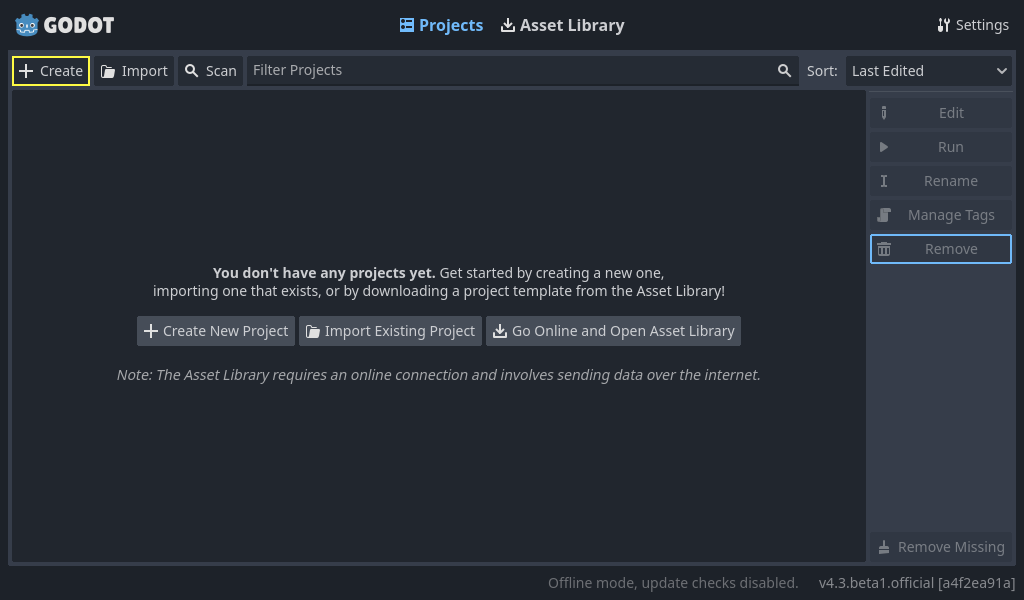
Herein shalt thou be asked to choose thine programming tongue—be it GDScript or C# of the line. Verily, GDScript doth bear great likeness unto Python.
The differences betwixt GDScript and Python (sans colours):
def hello():
    text = "Hello world!"

    print(text)
func hello():
    var text = "Hello world!"

    print(text)
In matters of variables within Python’s realm, one needeth but inscribe the name thereof alone. Yet in GDScript, first mustst thou write var. To forge functions, utterest thou func, rather than def.
Scenes & Nodes
One of the most principal concepts within Godot is that of Scenes and Nodes. Let us begin with nodes. A node is an object in Godot, capable of representing aught thing whatsoever. It may portray a player, an enemy, a button upon a menu, text displayed upon the screen—indeed, all manner of things. Scenes are but assemblies of nodes.
Herein shall we fashion a very simple example.
Part the Firsta - Set up the “player” scene
Upon the summit of Godot’s window, presseth the “2D” button to turn thy view unto a two-dimensional sight.
On the left hand side of the window dost thou behold this interface:
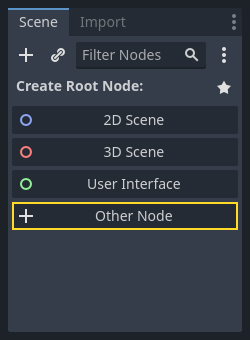
Press the “Other Node” button and seek out “CharacterBody2D”; select it and strike upon “Create”. This is a node employed for a player in twoscore dimensions. Perchance thou shalt spy an amber triangle ⚠️ beside the “CharacterBody2D” node; this cometh because it lacketh certain things which fain would possess itself withal.
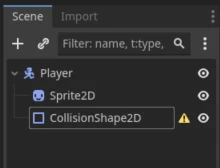
If thou right-clickest upon the node, there appeareth a button marked “+ Add Child Node…”. Employ this device and add forthwith two nodes: Sprite2D and CollisionShape2D. The former serveth to affix some graphics upon the player, whilst the latter doth check for collisions. Thou mayst also name them if thereby order might be more easily kept over affairs. I have given my CharacterBody2D the appellation “Player”. Thus ought the scene appear at present:
Part I b – Mending ⚠️ upon the CollisionShape2D
That warning triangle betokeneth that the CollisionShape2D lacketh collision itself. This mayst thou remedy by striking upon the node (to thy left), whereupon a panel shall appear on th’ right hand. Herein shalt thou find an abundance of information concerning the node which thou mayest alter. Pray tinker with what lieth thereat. But we shall fix our gaze upon “Shape”; set this unto, say, RectangleShape2D. ’Tis not greatly importunate; for here shall no collisions be employed.
Part I.c – Adding a Sprite, Graphics
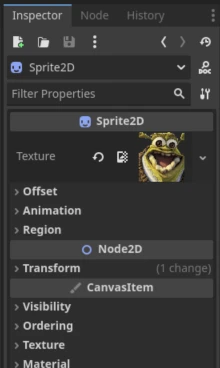
If thou clickest upon Sprite2D to the left, there shall appear unto thee the field on high, whereon is writ “Texture”. Herein mayst thou place an image for thy player. Nay but drag forth thine image and cast it into said field.
Thus shan’t it look after having added a sprite.
Part II – To add Input, to check it well
Upon the summit of yon window lieth a menu bar, “Scene — Project — Debug — Editor — Help.” Press thou upon “Project,” and thereafter upon “Project Settings.” Herein shalt thou behold a multitude of settings revealed unto thee. Select then “Input Map.” There mayest thou appoint buttons for thy keyboard.
- In the field marked “Add New Action,” write forthwith “left” and press “Add”.
- Then doth come addition of “right”, “up”, and “down”.
- These shall be known as “Actions”.
- Upon each “Action” canst thou affix keys by pressing that plus sign on the right hand side thereof.

- Now art thou but bound to strike those keys upon the board, and thereupon choose “Add”.
- Afflict all Actions with their respective buttons.
Part III – To append a script unto the governance of the player.
To enable the appending of game logic—that is, to effect change upon the player, the background, or whatsoever may exist within thy play—there must be a script. A script is code, and can be penned in two tongues: GDScript or C#. By default, it is GDScript.
- Press upon the “CharacterBody2D” node (I have named it “Player”).
- Strike the “Attach Script” button (see below).
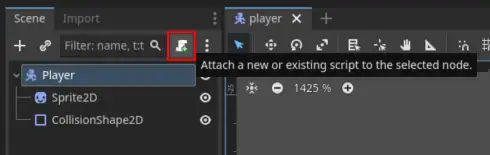
- Herein shall appear a window wherein thou mayest choose thine tongue (select GDScript) and assign a path (let it bear its current name, though thou art free to rename it if so desired); then proceed onward. Thereupon shalt thou behold an open “Script” pane. At first glance, little dost see therein.
# Extendeth thou thee character body two-dimensional
extends CharacterBody2D
The sole purport this code doth speaketh at present is that it belongeth unto a Node of type “CharacterBody2D,” which be our player.
Herein shall we append a function, wherewithal we may manipulate the player:
# Extendeth thyself as a two-dimensional character body of motion
class_name MyCharacter extends CharacterBody2D

## Invoked each physics frame for game logic updates and movement calculations.
## @param delta The time elapsed since last call (in seconds).
func _physics_process(delta: float) -> void:
    # No action required at this juncture; remain idle upon the stage.
    return
Physick Processe?
_physics_process is a function that updateeth every single framee, yea round about sixtie times in a second (by default). There existeth another function named but _process, which updateth continually throughout all things. If thou wouldst have thy player move with even pace and steady temperance, employest thou _Physics_Process.
Herein shall we append code that doth move the player.
Part IV — Base Input
In part II thou addedst buttons for thy inputs; now shall we employ them. There exists an inward objecte named Input, which mayest use to check if the player hath pressed that which thou hast set up within the “Input Map”.
Try this code into the _physics_process:
# If the right key is pressed down,
# set the horizontal speed to a hundred steps per second.
if Input.is_action_pressed('right'):
    velocity.x = 100

# Proceed along this path until struck by an obstacle.
move_and_slide()
What art this move_and_slide()?
move_and_slide() be an innward function in Godot that useth when we wouldst truly move that upon which it layest hold. Withoutal this, thy player shall ne’er stir from his place.
Warning
The spaces between the lines be most dear, forsooth, even as it stands in Python’s domain.
What betideth thee when thou dost launch thy programme by pressing the Play button within the Godot window, then smiting upon “right”?
If naught doth happen thereby:
- Hast thou remembered to set aught in th’“Input Map”?
- Dost write ‘right’ and not ‘Right’? I meanest that which is inscribed in code as same with name found in Input Map?
The whole of the code thus far
extends CharacterBody2D

func _physics_process(delta: float) -> void:
    if Input.is_action_pressed('right'):
        velocity.x = 100

    move_and_slide()
Now attempt thou t’add code for ‘left’, ‘up’, ‘down’.
What ought be velocity.x for left? And likewise for up and down?
All this code now
extends CharacterBody2D

func _physics_process(delta: float) -> void:
    if Input.is_action_pressed('right'):
        velocity.x = 100
    if Input.is_action_pressed('left'):
        velocity.x = -100
    if Input.is_action_pressed('down'):
        velocity.y = 100
    if Input.is_action_pressed('up'):
        velocity.y = -100

    move_and_slide()
Part V – Mending of the Code
Perchance ye shall observe that the player ceareth not when thou releasest a direction. We may remedy this now!
Before all thine ifs, add a line which setteth the velocity to zero. Thou mayst accomplish this by writing velocity = Vector2().
All speeds and directions within Godot are but vectors, a mathematical conceit we need not delve into presently; yet if curiosity doth stir thee as to what it signifieth, repair hence unto this place: Wikipedia vectors.
All this code now
extends CharacterBody2D

func _physics_process(delta: float) -> void:
    velocity = Vector2()

    if Input.is_action_pressed('right'):
        velocity.x = 100
    if Input.is_action_pressed('left'):
        velocity.x = -100
    if Input.is_action_pressed('down'):
        velocity.y = 100
    if Input.is_action_pressed('up'):
        velocity.y = -100

    move_and_slide()
When thou dost commence thy game now, thou mayst move about withal the player:
Moreover, ye might amend the code to make that speed be no mere number, but stored in some other place.
Thou canst, perchance ere yon function’s beginning, add a constant which keepeth watch over speed.
The entirety of the final codex with const
extends CharacterBody2D

const SPEED = 100

func _physics_process(delta: float) -> void:
    velocitiy = Vector2()

    if Input.is_action_pressed('right'):
        velocity.x = SPEED
    if Input.is_action_pressed('left'):
        velocity.x = -SPEED
    if Input.is_action_pressed('down'):
        velocity.y = SPEED
    if Input.is_action_pressed('up'):
        velocity.y = -SPEED

    move_and_slide()
Part Six – Play about thyself!
If ye return unto the first part, [Useful Resources] (#usefull-resources), there shall ye find what thou mayest continue to play withal.
After this, attempt thee to craft thine own game. Whatsoever creation lies within thy power is left entirely to thy discretion! If thou wishest to devise something wholly new, so let it be done! Shouldst thou desire to imitate a game already existing, by all means pursue that path also! The finest manner of learning doth lie in trial itself!