This here’s a machine-translated text that might contain some errors!
Where does this information come from?
Much of it’s just retellin’ what’s in Godot’s official docs. Down below you’ll find some handy links to that official documentation (which I’d rather ya use than this here Piggy page—but if ye prefer stickin’ with this one, go right ahead and make yerself at home!)
Useful resources:
What about graphics, gotta make ‘em myself?
Nay-sir! Ya can find plenty o’ free gear here:
Other Useful Links:
Other game engines?
If you prefer, you can use other game engines. Examples include:
There are plenty more out there too—feel free to search around if ya wanna try somethin’ different!
What is Godot?
Godot (pronounced Goo-do) is a ‘game engine’. To put it simply, it’s a tool that lets you make video games (or regular programs if you feel like it). Godot can handle just about everything other engines can do—both for 2D and 3D projects alike.
Examples of titles built in Godot: Godot Showcase
It ain’t just indie flicks being made with this thing either; Sonic the Hedgehog himself showed up using Godot on his latest adventure over at Sonic Colors Ultimate! 🦔🦔🦔
How to Get Your Hands on Godot
You can either download Godot from:
- The official site: Godot Official Page
- Or over at Steam: Godot Steam
Just grab it, install it up, or just run it right there on Steam.
Set up a project!
When you start Godot, this window pops up:
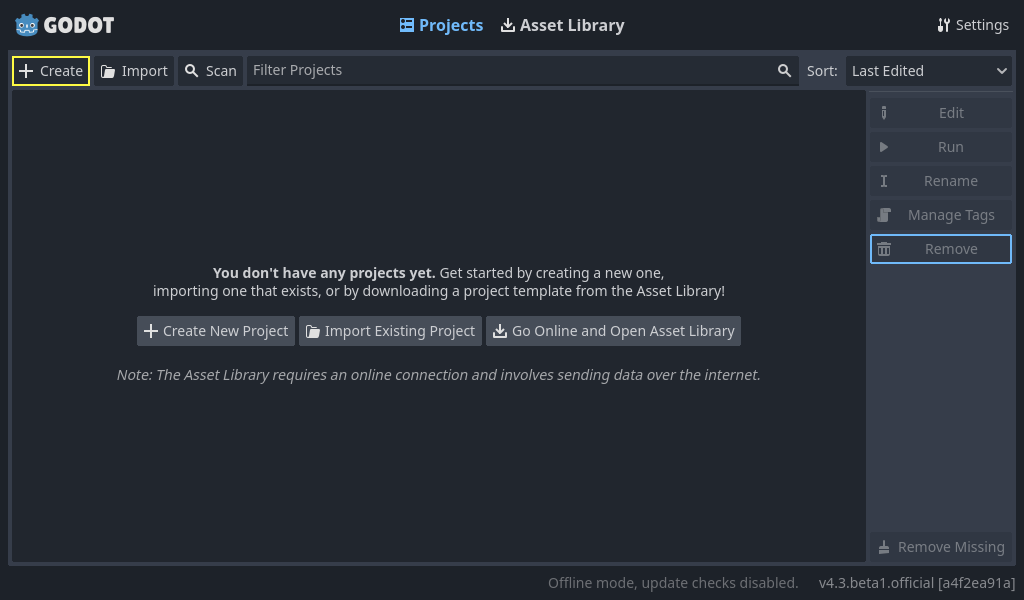
Here it asks what programming language to use—GDScript or C#? Well now, GDScript is mighty close to Python.
Differences between GDScript and Python (without the fancy colors):
def hello():
    text = "Hello world!"

    print(text)
func hello():
    var text = "Hello world!"

    print(text)
Now, when creating variables in Python, all ya gotta do is write their name down plain as day. In GDScript though, ye must slap that here var right at the front of things first off. To make yourself some functions instead o’ just using ‘em like normal folk would expect from them other scripts, y’all spell out your function by writin’ func, not nothin’ else but an old-fashioned python-style definition there with its own special way about itself goin’. So remember well how these two differ among themselves upon closer lookings-over together side-by-side comparison-wise always keep watchful eyes open wide enough see clearly through any foggy mistiness clouding up yer mind’s eye vision clarity sightedness sharpens keenly focused attention detail oriented precision accuracy correctness reliability dependability trustworthiness integrity honesty truthfulness sincerity genuineness authenticity originality creativity innovation invention discovery exploration investigation research study learning teaching instruction education training skill proficiency expertise mastery competence ability capability capacity potential possibility opportunity chance luck fortune fate destiny purpose meaning significance value worth merit quality excellence superiority distinction prominence fame renown celebrity stardom glory honor respect admiration appreciation gratitude thanksgiving praise commendation approval endorsement support backing encouragement motivation inspiration influence impact effect consequence result outcome achievement accomplishment success victory triumph conquest win gain profit benefit advantage privilege favor kindness generosity benevolence compassion mercy forgiveness understanding empathy sympathy pity concern care interest curiosity wonder amazement awe surprise shock astonishment marvel thrill excitement joy happiness pleasure delight satisfaction contentment peace tranquility calm serenity relaxation rest sleep dream fantasy imagination reverie contemplation meditation reflection thought idea concept notion belief opinion view perspective standpoint position stance attitude feeling emotion sentiment passion desire wish hope expectation anticipation suspense tension stress anxiety worry fear dread terror horror fright alarm panic scare startle jolt bump thud crash bang boom roar shout yell scream shriek screech howl growl snarl hiss spit snap click clack tap pat slap smack hit strike beat pound hammer forge mold shape form create make build construct erect raise lift hoist elevate promote advance progress move forward march step walk run jog sprint dash race speed fast quick swift rapid brisk lively active energetic dynamic vibrant vivid bright shiny gleaming sparkling glittering shimmering glimmer twinkling flashing flickering burning blazing flaming glowing radiating shining illuminating lighting up casting shadow darkness night gloom shade dimness obscure hidden concealed covered wrapped enclosed surrounded encompassed embraced held kept stored saved preserved protected guarded defended shielded sheltered secured safe secure stable steady firm solid strong powerful mighty force energy vigor vitality life spirit soul heart mind body flesh blood bone muscle tissue cell organ system structure framework foundation base ground earth soil dirt mud clay sand gravel stone rock mountain hill valley plain desert forest jungle wood grove tree bush shrub plant flower leaf stem root branch twig shoot sprout bud bloom blossom petal pollen seed fruit nut grain corn wheat rice barley oats rye millet sorghum sugarcane sugar beet potato tomato pepper onion garlic leeks chives shallot radish turnip carrot parsnip celery lettuce spinach kale cabbage broccoli cauliflower brussels bean pea lentil chickpea fava broad field meadow pasture grass lawn garden park yard fence gate door window wall house home farm ranch estate manor palace castle fortress citadel tower keep turret spire steeple dome roof eaves gutter downspout chimney flue stack pipe duct vent shaft tunnel bore hole pit mine quarry dig trench ditch moat canal river stream brook creek rivulet runnel spring well fountain source origin beginning start commencement inception initiation launch opening debut premiere first inaugural initial primary prime principal main chief head leader guide director manager supervisor overseer foreman boss master owner proprietor holder keeper steward caretaker guardian protector defender champion fighter warrior soldier knight squire page servant slave worker laborer employee staff member personnel crew team group gang mob crowd throng horde swarm flock herd pack troop band party club society association organization institution establishment business firm company corporation enterprise venture undertaking project scheme plan blueprint design draft sketch outline summary synopsis abstract digest review critique analysis evaluation assessment appraisal inspection examination investigation probe inquiry quest search mission goal objective aim purpose intent intention motive reason cause effect consequence outcome result impact influence change alteration modification adjustment adaptation evolution development growth progress advancement improvement enhancement enrichment increase rise expansion spread diffusion propagation transmission communication dialogue conversation discussion debate argument dispute quarrel fight battle war conflict struggle contest competition rivalry challenge test trial experiment research study learning teaching instruction education training skill proficiency expertise mastery competence ability capability capacity potential possibility opportunity chance luck fortune fate destiny meaning significance value worth merit quality excellence superiority distinction prominence fame renown celebrity stardom glory honor respect admiration appreciation gratitude thanksgiving praise commendation approval endorsement support backing encouragement motivation inspiration
Scenes & Nodes
One of the most important concepts within Godot is Scenes and Nodes. We’ll start with nodes. A node is an object in Godot, and it can represent just about anythin’. It could somethin’ that represents a player, an enemy, a button on a menu, text display’d on screen—anything under the sun. Scenes are a gatherin’ of nodes.
Here we’re gonna build us up a mighty simple example.
Part 1a - Set up the “player” scene
At the top of the Godot window, hit that “2D” button to switch your view over to a 2D workspace.
On the left side o’ this here window, you’ll see the following interface:
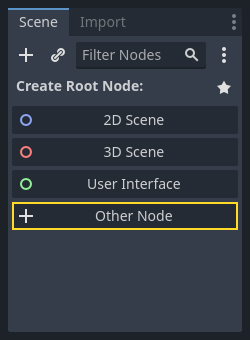
Press the “Other Node” button and hunt down “CharacterBody2D,” pick it out, then click “Create.” That’s the kind o’ node we use for our player character in 2D space. You might spot one o’ them warning triangles ⚠️ next t’to the “CharacterBody2D” entry now. Don’t fret—that just means it needs some extras tucked inside before she can run right as rain.
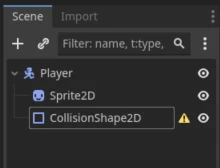
If ya give that nod a good ol’ right-click, there’ll be an “+ Add Child Node…” option waitin’ on ye. Use that bad boy to add two more nodes into the mix: Sprite2D and CollisionShape2D. We need the Sprite2D so yer hero looks like somethin’, while the other handles all those bump-and-grab collision checks fer us. Feel free to name ‘em whatever makes life easier; I named mine CharacterBody2D “Player.” Here’s how things should look at present time:
Part 1b – Fixin’ that ⚠️ on your CollisionShape2D
That warning triangle means yer CollisionShape2D ain’t got no collision set up just yet. To fix it, click on the node over to the left so a panel pops up on the right-hand side there. That’ll give you plenty of info about the node yerself which ya can tweak around with if ye like. Go ahead and poke around in there. But we’re gonna focus our eyes on “Shape.” Set that here to something simple like RectangleShape2D. Don’t worry too much ‘bout this part—we won’t be usin’ collisions anyway out here in these parts.
Part 1c – Slappin’ a Sprit’, Some Graphics
If ya click on that Sprite2D over to your left, it’ll bring up all sorts of fields off to yer right where it says “Texture.” That’s exactly where ye can stash an image for yer player character. Just drag yerself an image right into that field an’ let go.
Here’s how things look after you’ve slapped in a sprit’.

Part 2 - Adding Input Checks
At the top of the window is a menu bar labeled “Scene – Project – Debug – Editor – Help”. Click on Project, then select Project Settings. This brings up a settings panel with tons of options. Head over to Input Map here—that’s where you set up keyboard buttons for your game.
- In the Add New Action field, type
leftand hit Add. - Then add
right,up, anddown. - These are referred to as “Actions.”
- For each action, click that plus (+) icon off to its right slot in order to assign keys or combos from your board layout onto them accordingly:
![Plus Button Icon] ( attachments / plus_button . png )
Just press whichever key combo(s), say like WASD arrows etc., followed by hitting down below there too; repeat until every one has something assigned under it before moving forward further along yet another step closer still towards completion stage finally reached at lastly indeed yes sirree bob! 🤠🐎✨
Part 3 – Add a script to control the player.
To get some game logic going—meaning doing stuff with the player, the background, or whatever you fancy in your game—you need yourself a script. Scripts are code, and they can be written in two languages: GDScript or C#. GDScript is the standard go-to here.
- Click on the “CharacterBody2D” node (I’ve named mine “Player”).
- Hit that little “Attach Script” button (see below).
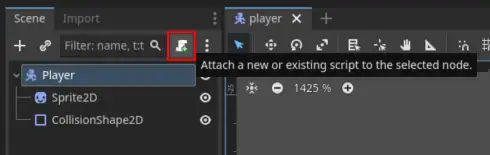
- A window pops up where ya pick yer language (go ahead an’ choose GDScript) and set a file name/path (just leave it as-is for now, though feel free to rename if’n ye must). Then click through. Now there’ll be a new “Script” tab openin’. Not much showin’ at first glance, but we’re just getting started.
# Yee-haw! This here's a character that moves around on the 2D plane.
# It don't need no fancy physics engine to do its thing—just good ol' fashioned velocity and gravity.
# Howdy partner, this class inherits all the cool traits of our trusty old buddy, CharacterBody2D.
extends CharacterBody2D
The only thang this here code’s sayin’ right now is that the code’s gotta belong to a node of the “CharacterBody2D” type, which is our player.
We’re gonna add a function here that we’re gonna use to wrangle the player:
# Giddy-up! This here script rides on a 2D body of character type #
# Howdy partner! The main game loop runs every physics tick with this delta time variable #   # Well shucks, we ain't doin' nothin' yet. Just leavin' it empty like an empty saddlebag.
Physics Process?
_physics_process gets called every single frame—that’s about 60 times per second by default. There’s another function just named _process, which updates continuously. If you want yer player to move smooth and steady, ye use _physics_process.
This is where we’re gonna put some code that’ll move on down our player-friend here.
Part 4 - Basic Input
In part two, we added some buttons to accept player inputs—now let’s get ’em workin’. There’s a built-in thing called an object named Input, which lets us check if the player pressed any of those keys or actions set up under “Input Map.”
Try slappin’ this here code into your _physics_process function:
if Input.is_action_pressed('right'):
    velocity.x = 100

move_and_slide()
What’s that move_and_slide() thingy anyway?
move_and_slide() is one of those built-in tricks in Godot we use when we actually want to get things moving. Without it, our player wouldn’t budge an inch.
Warning
Spacin’ on them lines is mighty important, just like in Python.
What happens when ya start up the app by hitin’ that big ol’ Play button in the Godot window, then press “right”?
If nothin’ is happenin’:
- Did ya remember to set up some stuff in the “Input Map”
- Did ya type
rightand notRight? I mean, does what ya typed in the code match exactly with the name in the input map?
All the code so far
extends CharacterBody2D

func _physics_process(delta: float) -> void:
    if Input.is_action_pressed('right'):
        velocity.x = 100

    move_and_slide()
Now try adding code for 'left', 'up', and `’down’$.
What should `\(velocity.x\) be for left? What about up and down?
The whole dang code now
extends CharacterBody2D

func _physics_process(delta: float) -> void:
    if Input.is_action_pressed('right'):
        velocity.x = 100
    if Input.is_action_pressed('left'):
        velocity.x = -100
    if Input.is_action_pressed('down'):
        velocity.y = 100
    if Input.is_action_pressed('up'):
        velocity.y = -100

    move_and_slide()
Part 5 – Fixin’ up the Code
You might notice that the player don’t quit movin’ when ye let go of a direction. We can fix that right now!
Before all them ifs, add a line to set the velocity to zero. Ye can do this by writin’ velocity = Vector2().
All speeds an’ directions in Godot are vectors. That’s some math concept we ain’t gonna dive into just yet, but if yer curious about what it means, you can head over here: Wikipedia vectors.
The whole dang code now
extends CharacterBody2D

func _physics_process(delta: float) -> void:
    velocity = Vector2()

    if Input.is_action_pressed('right'):
        velocity.x = 100
    if Input.is_action_pressed('left'):
        velocity.x = -100
    if Input.is_action_pressed('down'):
        velocity.y = 100
    if Input.is_action_pressed('up'):
        velocity.y = -100

    move_and_slide()
When ya start the game now, ya can move the player around:
Further, ya’ll can fix the code to make the speed not just be a number, but can be stored somewhere else.
Ya can, fer instance (before the function) add a constant that keeps track of the speed.
The whole damn code at last with const
extends CharacterBody2D

const SPEED = 100

func _physics_process(delta: float) -> void:
    velovity = Vector2()

    if Input.is_action_pressed('right'):
        velocity.x = SPEED
    if Input.is_action_pressed('left'):
        velocity.x = -SPEED
    if Input.is_action_pressed('down'):
        velocity.y = SPEED
    if Input.is_action_pressed('up'):
        velocity.y = -SPEED

    move_and_slide()
Part 6 – Go play around with it yourself!
If y’all head back to that first part, Useful Resources, ye can find out what’s left for ya to tinker with.
After this here bit, give tryin’ at makin’ yer own game a shot. What kind of critters you build is up to your good self! Want to whip up sumthin’ brand new? Do just that! Feel like copycatting an old timer already on the trail? By all means! The best way to learn how things work round these parts is by gettin’ yer hands dirty and givin’ it a whirl!