Avast ye, this be a machine-translated text an’ may contain errors, aye!
Where be this information comin’ from?
Much o’ this be just a tellin’ o’ Godot’s official documentation. Below ye’ll find some useful links to the official documentation (which I mostly recommend over this one on Piggy, but if ye prefer this one, then just use it!)
Useful treasures to aid yer journey:
- Godot - Step by step
- Godot - Yer very own swashbucklin’ adventure for two dimensions
- Godot - The Captain’s quarters
What about graphics, be I to make ‘em meself?
Nay! Ye can find plenty o’ free booty here:
Other handy scallywag’s guides an’ charts:
Other game engins?
If ye prefer, ye can use other game engins. Examples o’ other game engins be:
There be many others too, search away if ye wish to try somethin’ else!
What be Godot?
Godot (Pronounced Gah-doeh), be a ‘Game Engine’. To put it simply, ’tis a tool that lets ye craft games (or regular programs if yer heart desires). Godot can handle most of what other game engines can muster, both for 2D and 3D adventures.
Examples o’ tales crafted in Godot: Godot Showcase
’Tis not just indie scallywags who’ve built their ships with Godot; Sonic Colors Ultimate was forged wi’ Godot! 🦔🦔🦔
How dost thou obtain Godot?
Thou mayest either download Godot from:
- The official page: Godot Official Page.
- Or upon Steam: Godot Steam.
Simply fetch it, install thee’s self withal (or run on Steam), matey! Arrr! 🏴☠️⚓✨🐙💀🦜😎🌊🗡️🔥👻🤖❤️😊➕✅❌⭐💯✔️✘↺⇄♾️〰️※⁉️‼️§†‡¶€£¥¢¤©®™°±²³µ¹¼½¾⅛⅞←→↑↓↔↵⇒⟹∅∈∀∃¬∧∨∩∪≠≤≥≈simprops~≂=|÷×+−==∷√∝∫∬∭∮∯∰∱∲∳◁▷□■▪▫▬◆◇☆★
Set up a project!
When ye start Godot, this window appears before yer eyes:
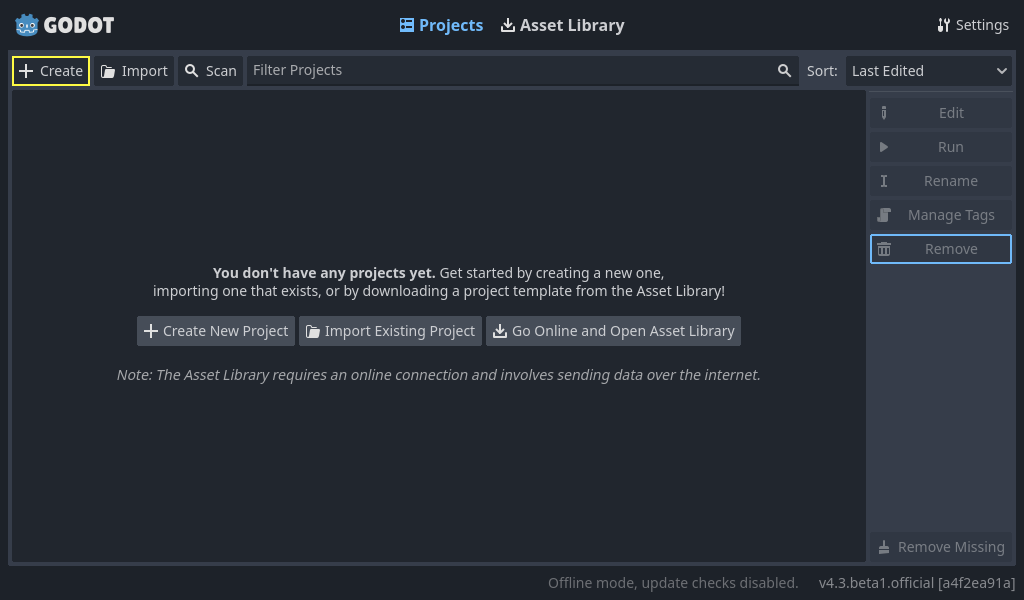
Here they ask which programming tongue thou wilt use: GDScript or C#? Now, GDScript be much like unto Python.
Differences ‘twixt GDScript and Python (sans colors):
def hello():
    text = "Hello world!"

    print(text)
func hello():
    var text = "Hello world!"

    print(text)
To declare variables in the ways of Python, all one need do is speak its name. But in GDScript, thou must prefix it with var. To forge functions, write func instead o’ that pesky little word def.
Scenes an’ Nods
One o’ th’ most important concepts within tha world of Godot is ye Scenes an’ Nods. We’ll start with the nods first off. A nod be a object inside Godot, an’ it can represent anythin’. It could summat that represents a player, a villain, a button on a menu, text appearin’ upon yer screen—any manner o’ thing at all. The scenes themselves? They’re just a collection o’ those very same nods.
Here we shall craft ourselves a mighty simple example to show how’t works.
Part 1a - Set up the “player” scene
At the top o’ the Godot window, press the “2D” button tae change yer view tae a 2D vista.
On th’ left side o’ the window ye’ll see this here interface:
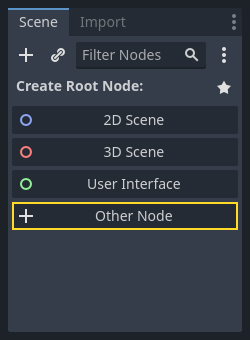
Press th‘“Other Node”’ button an’ search fer “CharacterBody2D”, pick it an’ hit “Create”. This be a node used f’r a 2D scallywag. Ye might notice there’s a warning triangle ⚠️ next tae th‘“CharacterBody2D”’ node. That be because she’s missin’ some things she’d like tae have.
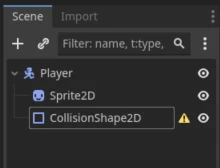
If ye right-click onnae node, yee’ll find “+ Add Child Node…” Use that one to add two nodes: Sprite2D and CollisionShape2D. The Sprite2D be fur displayin’ graphics upon our hero, while tha’ther one checks for collisions. Yee can name them if it helps keep track of thy affairs. I named my CharacterBody2D “Player”. Here be how th’ scene should look now:
Part 1b - Fixin’ ⚠️ on CollisionShape2D
Th’ warning triangle in this case means that th’ CollisionShape2D lacks actual collision detection. Ye can fix this by clickin’ on the node (t’ left), an’ a panel will appear on t’right’. Here ye’ll see a whole bunch o’ info about the node what ye can change up. Go ahead an’ play around with it all. But we want to focus on “Shape,” set it to sumfin’, like RectangleShape2D. It don’t matter much anyway, as we ain’t usin’ collisions here.
Part 1c – Addin’ a Sprit’, some graphics
If ye tap on Sprite2D to th’ left, ye’ll see th’ field appear t’ th’ right where it says “Texture.” Here yarr can shove an image for th’ player. Just drag an image into that box an’ let go!
Here’s how ‘t looks after addin’ a sprit’.

Part 2 – Addin’ yer inputs, check it!
At the top o’ the window ye’ll see a menu bar: “Scene - Project - Debug - Editor - Help”. Click on “Project” an’ then select “Project Settings”. That here will bring up a list full o’ settings. Find and click “Input Map”. Here be where ye can set which buttons on yerself keyboard do what in battle.
- In the field labeled “Add New Action”, type “left” an’ hit that ol’Add button.
- Do th’ same for “right”, “up”, and “down”.
- We call these commands “Actions”.
- On each of them Actions, press the + sign to the right t’ assign a keypress command.

- Now just tap away at yer keys one by one after hittin’ add fer each new move.
- Make sure ye bind those fancy keys onto all active moves before settin sail!
Part 3 - Add a script t’ control yer player.
Tae add game logic—meannin’, doin’ summat with th’ player, background, or whatever ye fancy in the game—you need yerself a script. Scripts be code, an’ they can be written in two tongues: GDScript or C#. We use GDScript by default here on this ship.
- Click on th’ “CharacterBody2D” node (I’ve named it “Player”).
- Hit that “Attach Script” button (see below).
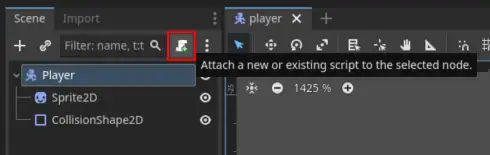
- A window’ll pop up wher’er ye choose thy tongue (pick GDScript) and set a path (just leave ‘tis as is, though ye may name it if thou wilts). Then click onward! Ye shall see a “Script” windw appear. Not much to behold there at first glance, arrr.
# Extends th' Character Body 2D class
extends CharacterBody2D
The sole tale this code be tellin’ fer now is that it shall belong t’ a Node o’ type “CharacterBody2D”, which be our brave hero on th’ high seas!
We’ll soon tack in a function here, wherewith we shan’t fail t’ maneuver yer trusty player character like true scallywags do their ships! 🏴☠️⚓
# Argh! Extend th' character body 2D
class_name MyCharacter extends CharacterBody2D

# Called every physics frame, ye scallywag!
func _physics_process(delta: float) -> void:
    # Batten down the hatches an' do nothin' fer now!
    pass
Yarrs o’ Science?
_physics_process be a function that gets updated every single frame, arrr, roughly sixty times per second by default. There exists another scallywag called _process, which updates all wobbly way long if ye want yer pirate to move smooth as silk on the high seas then use _physics_process.
It be here we shall put in code that moves th’ player.
Part 4 - Basic input
In part 2 ye added buttons t’ th’ Input map, now we’ll put ‘em to use. There be a built-in object named Input that we can useto check if the player has pressed any o’ them keys we set up in th‘“Input Map.”
Try stickin’ this bit o’ code inside yerself’s _physics_process:
# If the right key be pressed down...
if Input.is_action_pressed('right'):
    # Set our speed along th' X-axis!
    velocity.x = 100

# Slide us alang this here path!
move_and_slide()
What be move_and_slide()?
move_and_slide() be an内置 function in Godot that we use when we want to actually move what it’s applied upon. Without this, the player will not move their hull.
Warning
The space between de lines be mighty important, just like in Python, arrr.
What be happenin’ when ye start the program by pressin’ the play button in the Godot window, then press ‘right’?
If naught be happenin’ now:
- Did ye remember to set somethin’ up in the “Input Map”?
- Did ye write
rightand notRight? That is, be what ye wrote in the code the same as the name in the input map?
The whole code so far
extends CharacterBody2D

func _physics_process(delta: float) -> void:
    if Input.is_action_pressed('right'):
        velocity.x = 100

    move_and_slide()
Aye, now try t’ add code fer 'left', 'up', 'down'.
What must velocity.x be fer left? What ‘bout up an’ down?
The whole shebang now
extends CharacterBody2D

func _physics_process(delta: float) -> void:
    if Input.is_action_pressed('right'):
        velocity.x = 100
    if Input.is_action_pressed('left'):
        velocity.x = -100
    if Input.is_action_pressed('down'):
        velocity.y = 100
    if Input.is_action_pressed('up'):
        velocity.y = -100

    move_and_slide()
Part 5 - Fixin’ up the Code
Ye might’ve noticed that the player don’t come to a halt when ye let go of a direction. We can sort that out right now!
Before all them ifs, add a line tae set the velocity to zero. Ye can do this by writin’ velocity = Vector2().
All speeds an’ directions in Godot are vectors. That’s a math concept we won’t dive into just yet, but if yer curious about what it means, ye can head over here: Wikipedia vectors.
The whole scurvy code now
extends CharacterBody2D

func _physics_process(delta: float) -> void:
    velocity = Vector2()

    if Input.is_action_pressed('right'):
        velocity.x = 100
    if Input.is_action_pressed('left'):
        velocity.x = -100
    if Input.is_action_pressed('down'):
        velocity.y = 100
    if Input.is_action_pressed('up'):
        velocity.y = -100

    move_and_slide()
When ye start up th’ game now, ye can move about yer player ship:
Furthermore, ye scallywags might fix up th’ code so that speed ain’t just a number, but be stored in another spot.
Ye could add a constant, fer instance (before th’ function), to keep track o’ yonder speed.
The whole code at last with const
extends CharacterBody2D

const SPEED = 100

func _physics_process(delta: float) -> void:
    velovity = Vector2()

    if Input.is_action_pressed('right'):
        velocity.x = SPEED
    if Input.is_action_pressed('left'):
        velocity.x = -SPEED
    if Input.is_action_pressed('down'):
        velocity.y = SPEED
    if Input.is_action_pressed('up'):
        velocity.y = -SPEED

    move_and_slide()
Part 6 - Tinker to yer heart’s content!
If ye return t’ th’ first part, Useful Resources, ye can find what ye may continue t’ play wi’.
After that, try craftin’ yerself a game o’er own. What ye build is up t’ ye! If ye wish t’ forge summat brand new, then by all means, do it! If ye want t’ mimic an already existin’ game, go fer ‘t! Th’ finest way t’ learn be through trial and error! Arrr!