This is a machine-translated text that may contain errors!
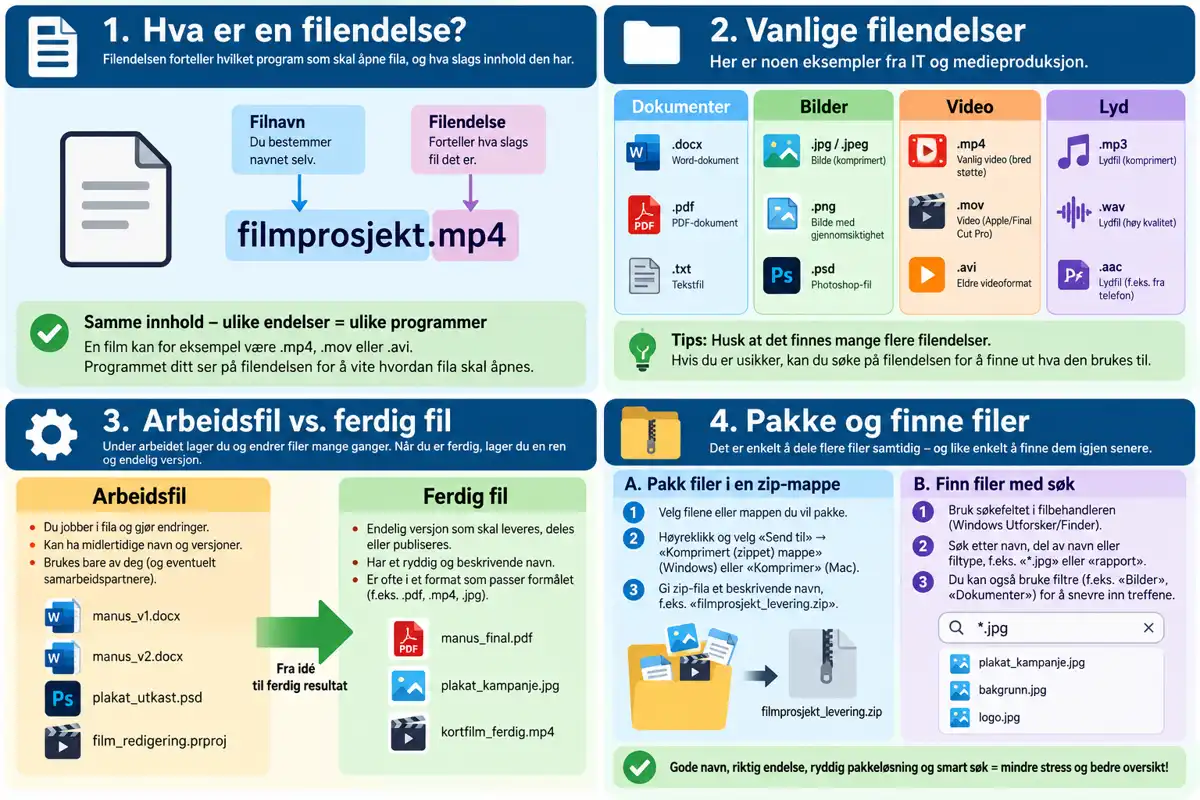
You have already learned that the file extension is the part of the filename that comes after the period, and how to
Have you turned on file extensions?
Check a file in your folder structure now — can you see .docx, .jpg, or something similar after the name? If not, go back to [[Folder Structure Level 2 - File Names|previous part]] and turn it on first.
File extensions in IT and media production
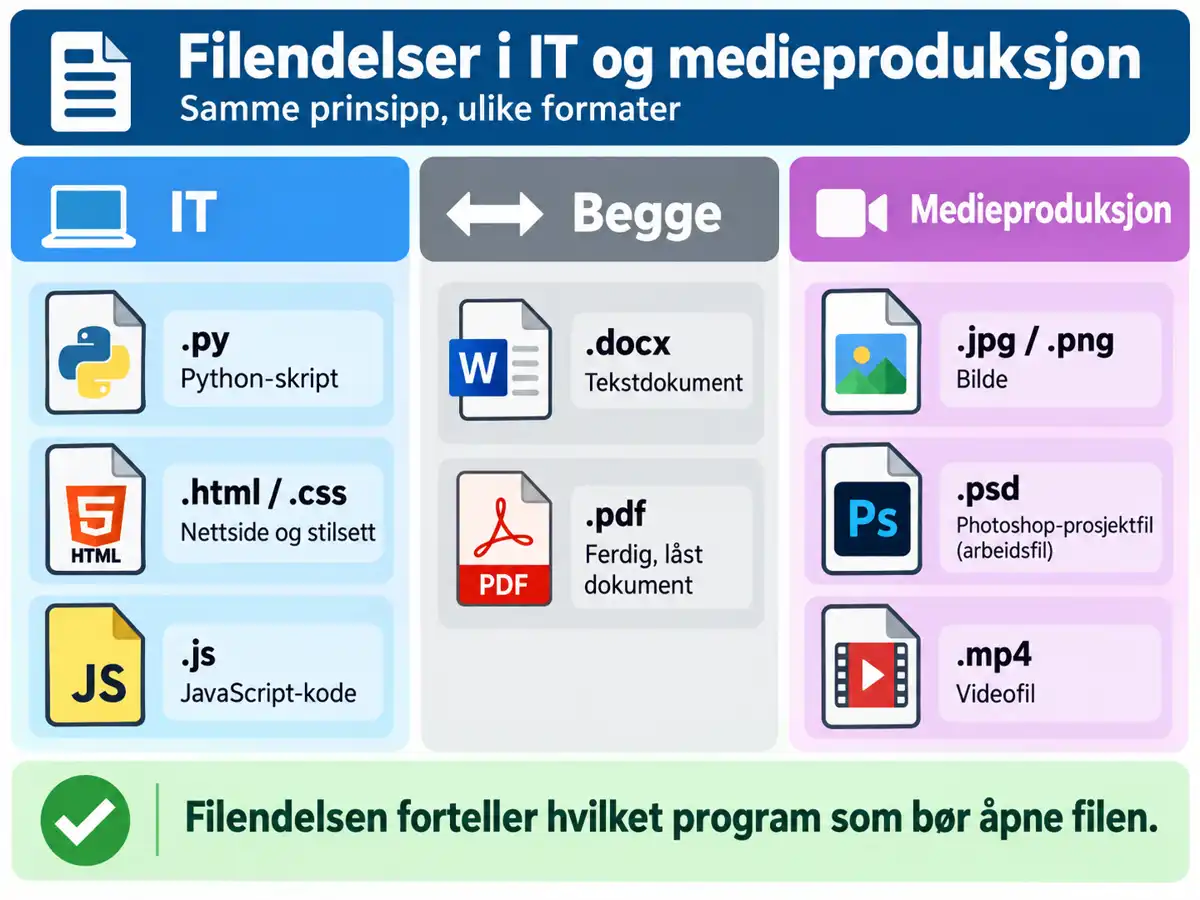
Different fields use different file types. Here are some you will encounter at IM:
| Extension | What is it? | Field |
|---|---|---|
.py | Python script | IT |
.html / .css | Web page / stylesheet | IT |
.js | JavaScript code | IT |
.docx | Text document | Both |
.pdf | Finalized, locked document | Both |
.jpg / .png | Image | Media Production |
.psd | Photoshop project file | Media Production |
.mp4 | Video file | Media Production |
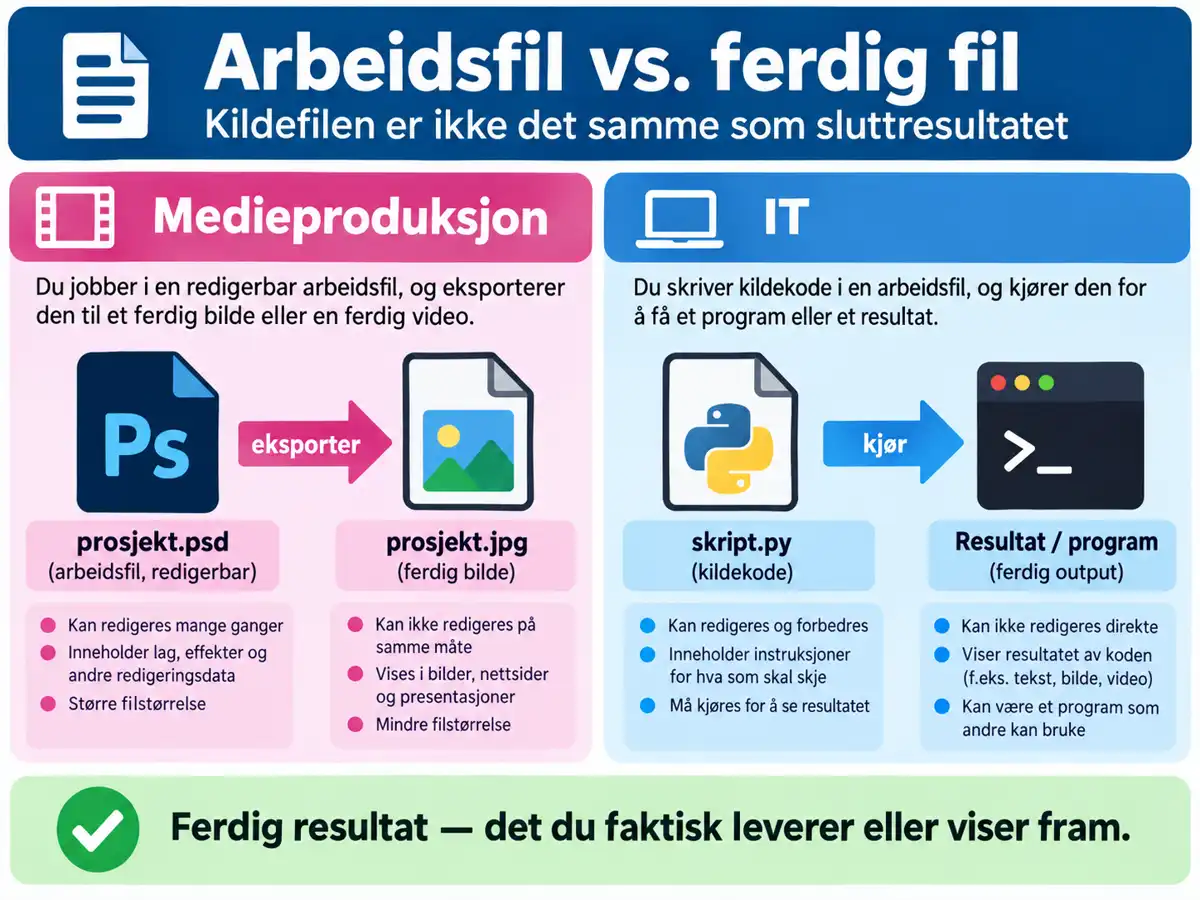
Working file vs. final file
A
The same logic applies to code: a
Task - Create correctly named files in your own folder structure
You are to submit three files for a school project: an image, a text document, and a website file.
Step 1 - Create the files
Go into the folder structure you created in [[Folder Structure Level 1 - Create a Folder Structure|Folder Structure Level 1]], and create three new, empty files:
- one image file (
.jpgor.png) - one text document (
.docx) - one web page file (
.html)
Step 2 - Give them proper names
Each file should have:
- a
descriptive name (see [[Folder Structure Level 2 - File Names | previous part]]) - correct file extension for the content type
- correct placement within its own folder structure
Don’t change file extensions to “trick” a program
The file extension should match its actual contents. Changing .docx to .html does not turn the file into a web page—it just corrupts it for the program that’s supposed to open it.
Step 3 - Check your work
Review your three files. Is the file extension visible on all three? Do they have names that tell what they contain without having to open them?
- If you are done
Look at the filename IMG2093.jpg. Is this a good filename? What would you name the file instead, without changing the file extension?
Done! 🎉
You now recognize common file extensions within IT and media production, and know the difference between a working file and a finished file. Combined with good naming conventions from the previous part, you now have what you need to keep your schoolwork organized for the rest of the year.